> ## Documentation Index
> Fetch the complete documentation index at: https://plain-docs-orca-916-agent-docs-restructure.mintlify.site/llms.txt
> Use this file to discover all available pages before exploring further.
# Customize your Slack bot
> Change the name and logo your Slack bot uses when it posts on your behalf.
Your Slack support experience should feel like an extension of your brand, not a third-party tool. Plain lets you customize your Slackbot name and logo, so every interaction feels familiar, professional, and on-brand.
 ## Customizing your Slack bot
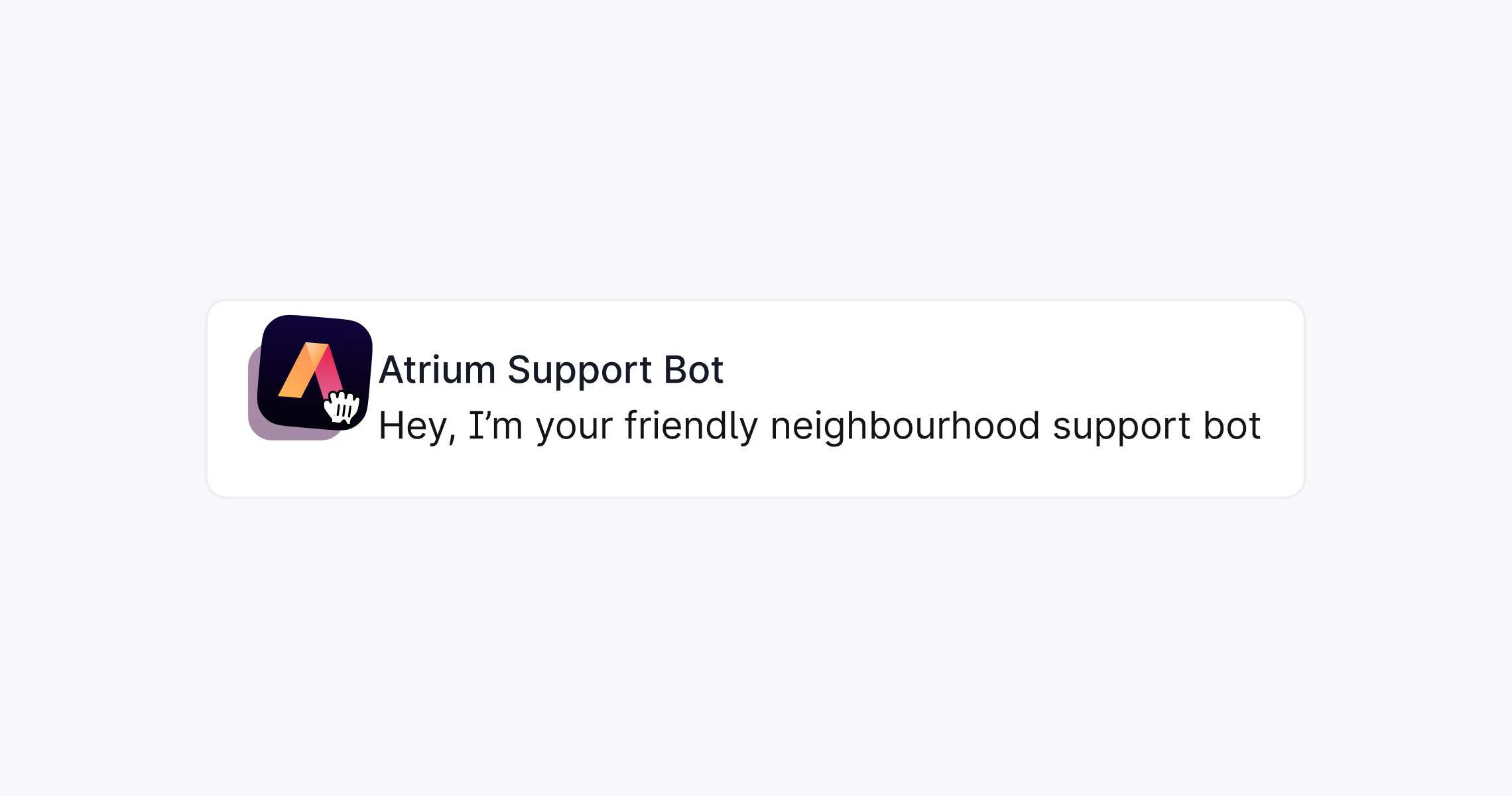
Go to **Settings → General** in Plain, upload a logo, and set your public name. This is your company name.
In Slack, go to **Configuration → Bot User**, click **Edit**, and change the name.
The name set in Plain's workspace settings takes precedence over the one set in Slack.
## Customizing your Slack bot
Go to **Settings → General** in Plain, upload a logo, and set your public name. This is your company name.
In Slack, go to **Configuration → Bot User**, click **Edit**, and change the name.
The name set in Plain's workspace settings takes precedence over the one set in Slack.